


Excel TGI Quiz Show Game DELUXE |
||||||||||||||||||||||
 This
is the top of the line game for training. It has all of the normal
features of regular quiz show games but also include some special new features
like the ability to attach and show graphic images with each question,
or to play with up to 8 teams with as many as 80 players. In addition,
this game is really two games in one. Our normal Quiz Show game in which
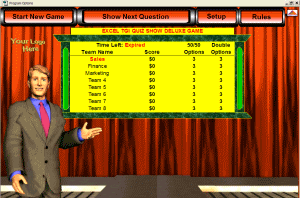
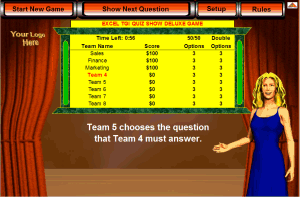
an opposing team selects the question for one of the challenging teams,
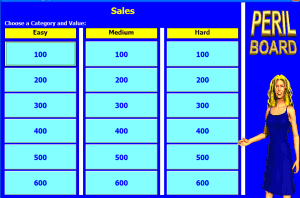
OR a Jeopardy type game we call PERIL (see graphic), plus many other refinements
that make using and playing this great game easy and FUN. Game features
include: This
is the top of the line game for training. It has all of the normal
features of regular quiz show games but also include some special new features
like the ability to attach and show graphic images with each question,
or to play with up to 8 teams with as many as 80 players. In addition,
this game is really two games in one. Our normal Quiz Show game in which
an opposing team selects the question for one of the challenging teams,
OR a Jeopardy type game we call PERIL (see graphic), plus many other refinements
that make using and playing this great game easy and FUN. Game features
include: |
||||||||||||||||||||||
| -
Two games in one. Our traditional Quiz Show or "PERIL" a Jeopardy
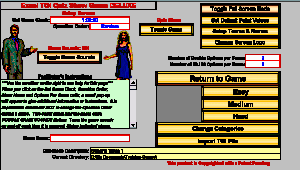
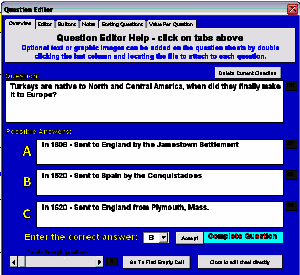
type game option. - Graphic Viewer allows you to show a separate image for any questions. Images can contain additional text, charts, graphs or pictures. - Team play can be set for 2 to 8 teams, and the team names appear as the game is played. - Teams can have up to 10 players per team. Player names also appear IN THE GAME! -Individual Play Option - This game can be emailed to trainees as a pre-work exercise or given to class participants as a fun way to review the course materials. What a fantastic learning enhancer! -Game clock, allows you to pre-set play time and keep you on schedule. -Automatic scoring, and scoreboard to track each teams progress. - User has complete control over scoring including a pop-up that will let them correct scores if an error is made during play. - User defined default point values for (3) training categories or user defined point values for EACH question individually (Create Bonus Questions!). -Game ends automatically when you run out of time or questions - also the END GAME function is available in case of an unexpected schedule change! - A special tie-breaker option button. - Exciting game sounds with volume adjustment and on/off sound switch right in the game itself. - Questions can be presented sequentially or in non-repeating random order. - You can include an event name and your OWN GRAPHIC LOGO on the game screen. - Type or import your own training questions in the game or purchase our special business question sets. (From Diversity to General Trivia) - "Save As" option allows you to save different versions of the game. - Game Strategy Options like 50/50 or “Double Your Bet”. You define how many they get! - Password protected question sheets so the game can be distributed without the user being able to view or change the questions before a game is played. - Three User Defined Question Categories. - Question order can be sorted and easily rearranged so your important questions appear first! - Includes a separate Question Deluxe Application to make entering questions a cinch! Comes complete with question editor. -Since questions can be imported into any TGI game, you can easily manage different question sets. Have question sets for ALL your training programs!! - Full Screen mode to make the game as large as your screen for better visibility when using a projector. - Includes complete game instructions and a special Rules Pop-Up to quickly explain the game to your participants. This is one game you will want to have in your training arsenal. The full featured Excel TGI Quiz Show Deluxe! |
     |
|||||||||||||||||||||
|
||||||||||||||||||||||
|
||||||||||||||||||||||
| Definitions Single User License This is for a single user only. It can be used to "train" as many people, as you like, inside or outside of your company by the user assigned the license. Under this license, TGI software cannot be re-sold or re-distributed. Ten User License This is a single limited business license and can be used or distributed to up to 10 employees inside of your company. It cannot be sold or distributed to anyone outside of your company. It can be used to "train" as many people, as you like, inside or outside of your company. If you licensing needs exceed 10, buy multiple copies of this license to equal the number of users that will have this software. CD Mailing Many customers prefer that our software be mailed to them on a CD. This service is provided for an additional charge which includes the cost of mail delivery (5-7 business days for 1st class or 2-3 business days for Priority Mail). Annual License This product will be licensed for your use for one full year. At the end of one year you will be prompted for one month to re-new your license before the product is disabled. Lifetime License This product is purchased only ONE time and is licensed to the purchaser for life. |
||||||||||||||||||||||
© Copyright 2004-2006
Training-Games.com
All Rights Reserved